[php] include ‘/var/www/wp-content/themes/nettalk/inc/pages-sect-top.php’; [/php]
[php] include ‘/var/www/wp-content/themes/nettalk/inc/support-side-menu.php’; [/php]
netTALK DUO Setup- Router
Follow these simple steps to setup your new netTALK DUO
Required: high-speed Internet, modem or router, phone
prev
next
1. Activate your Device
- Locate your username and password inside of the box.
- Go to www.nettalk.com/activate and follow the activation instructions to activate your netTALK DUO / DUO II.
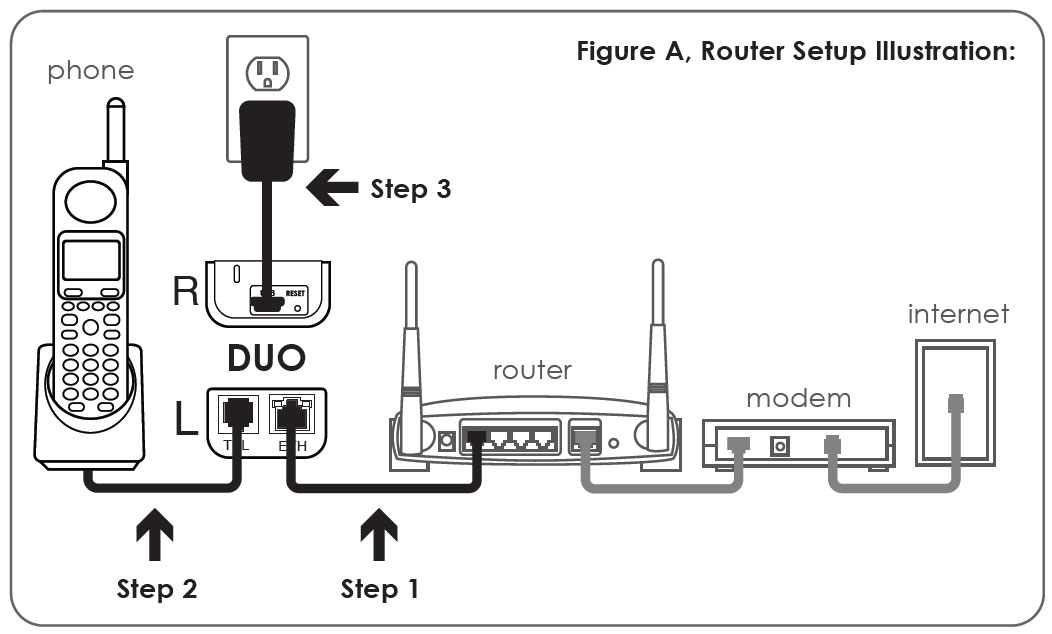
2. Connect ethernet cable
- Connect the gray Ethernet cable into the “ETH” port on the DUO
- Connect the other end into an available Ethernet port on your router
3. Connect to your phone
- Connect your phone into the “TEL” port on the DUO
4. Connect USB cable
- Connect the black USB cable into the “MINI USB” port on the DUO
- connect the AC Adapter to the other end of the black USB cable
- Connect it to a power outlet
5. DUO auto syncs with our network
- A green light (located: top-left of the “ETH” port) will turn on indicating it is getting power.
- A yellow light (located: top-right of the “ETH” port) will pulsate indicating it is registering with our network.
- Please be patient, this automatic process may take a minute. After the DUO registers, it will ring your phone once. You should now hear a dial tone and be able to place and receive calls on the DUO.
- If you experience any issues during this process, please submit a trouble ticket at faq.nettalk.com.
 Download Configuration Guide
 netTALK Canada